Tesla Paint Shop not working? Everything we know about Toybox wraps
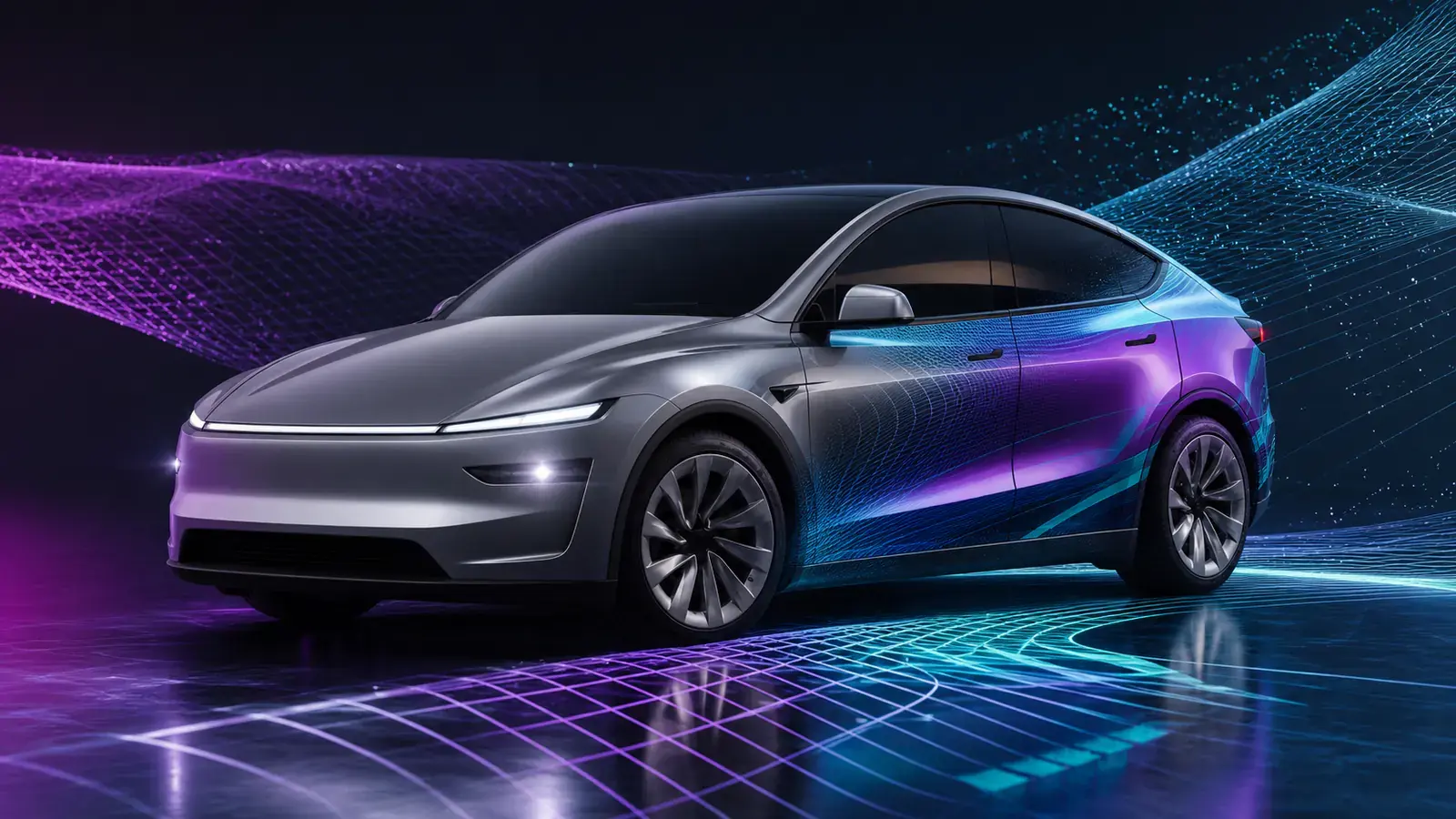
Tesla Paint Shop is either super simple or super frustrating — almost no middle ground. Tesla now offers two official transfer paths: Tesla App v4.59.0+ uploads of compliant PNGs, or USB. If neither works, the interface still gives limited error detail. We've helped thousands of people get their wraps working; here's everything we know.
How Paint Shop works
Paint Shop lives in Toybox on the touchscreen and applies a compliant PNG to the on-screen 3D vehicle model. Files can now be added from the Tesla App, and the original USB Wraps-folder method still works. Entry: tap the Tesla 'T' → Toybox → Paint Shop → Wraps tab. If Toybox is missing, update your software. Paint Shop has been available on most models since about 2022.
Try Tesla App upload first
With Tesla App v4.59.0+, go Creations → Wrap → Upload and choose a compliant PNG: 512×512 to 1024×1024 px, under 1 MB, filename max 30 characters (letters, numbers, underscores, hyphens, spaces only). The app supports up to 10 files. If your vehicle or account has no Upload entry yet, use the USB flow below.
USB setup (where 90% of problems are)
Step 1: Format the USB drive
Use exFAT or FAT32. MS-DOS FAT (Mac), ext3 and ext4 are also supported; NTFS is not. Ensure the drive holds no map or firmware files — Tesla ignores drives containing them.
Step 2: Create the folder
Create a folder in the USB root named exactly: Wraps. Not TeslaWraps, not wraps, not Wrap. If the name is wrong, Tesla's software cannot find your files.
Step 3: Add PNG files
•Format: PNG only
•Resolution: 512×512 or 1024×1024 px
•File size: under 1 MB each
•Filename: max 30 characters, letters/numbers/underscores/hyphens/spaces only
•Count: up to 10 at a time
Do not use subfolders — Paint Shop does not scan subdirectories.
Step 4: Plug in
The glovebox USB port is most reliable. Console ports usually work, but some owners report occasional detection failures on older firmware.
Troubleshooting: wrap not showing
•Confirm the folder name — Wraps in the USB root, not inside another folder
•Check file format — PNG only; convert JPG/WebP first
•Check file size — each PNG under 1 MB; reduce resolution or compress if too large
•Check resolution — must be 512×512 or 1024×1024 px
•Reformat the USB — exFAT or FAT32; NTFS unsupported
•Try another USB drive — some cheap drives have compatibility issues; a plain SanDisk or Samsung under 32 GB is safest
•Restart the touchscreen — hold both scroll wheels about 10 seconds until it reboots
•Check software updates — older firmware has Paint Shop bugs; update to latest
Troubleshooting: wrap looks wrong on the car
•Wrong template — most common cause. A Model 3 Classic template does not fit Highland; Model Y does not fit Juniper. Use the exact model and year template.
•Wrong resolution — Paint Shop requires 512×512 or 1024×1024 px; other sizes may distort or fail.
•Rotated or flipped — some editors rotate on export; check the PNG is not rotated 90°.
The simplest way to avoid all of this: use our online editor, which automatically uses the correct template and exports at the correct resolution.
Where to get custom wraps
•Our Gallery — thousands of free, ready-to-download wraps; filter by model
•Our editor — design your own with drag-and-drop tools and AI, with 3D preview before download
•Photoshop / Illustrator — download blank UV templates for full control (best for professional designers)
FAQ
Does Paint Shop cost anything?
No. It's a free built-in feature of every Tesla, and wraps on this site are free too.
Can Paint Shop damage my car?
No. It is purely a touchscreen display feature and does not affect paint, cameras or any vehicle system.
How many wraps can load at once?
Up to 10 at a time — Paint Shop loads PNGs from the Wraps folder, capped at 10.
Does the wrap remain after removing USB?
The currently selected wrap remains after unplugging USB, but switching to another custom wrap requires re-inserting it.