2026 Tesla wrap complete guide — design, download and install in one article
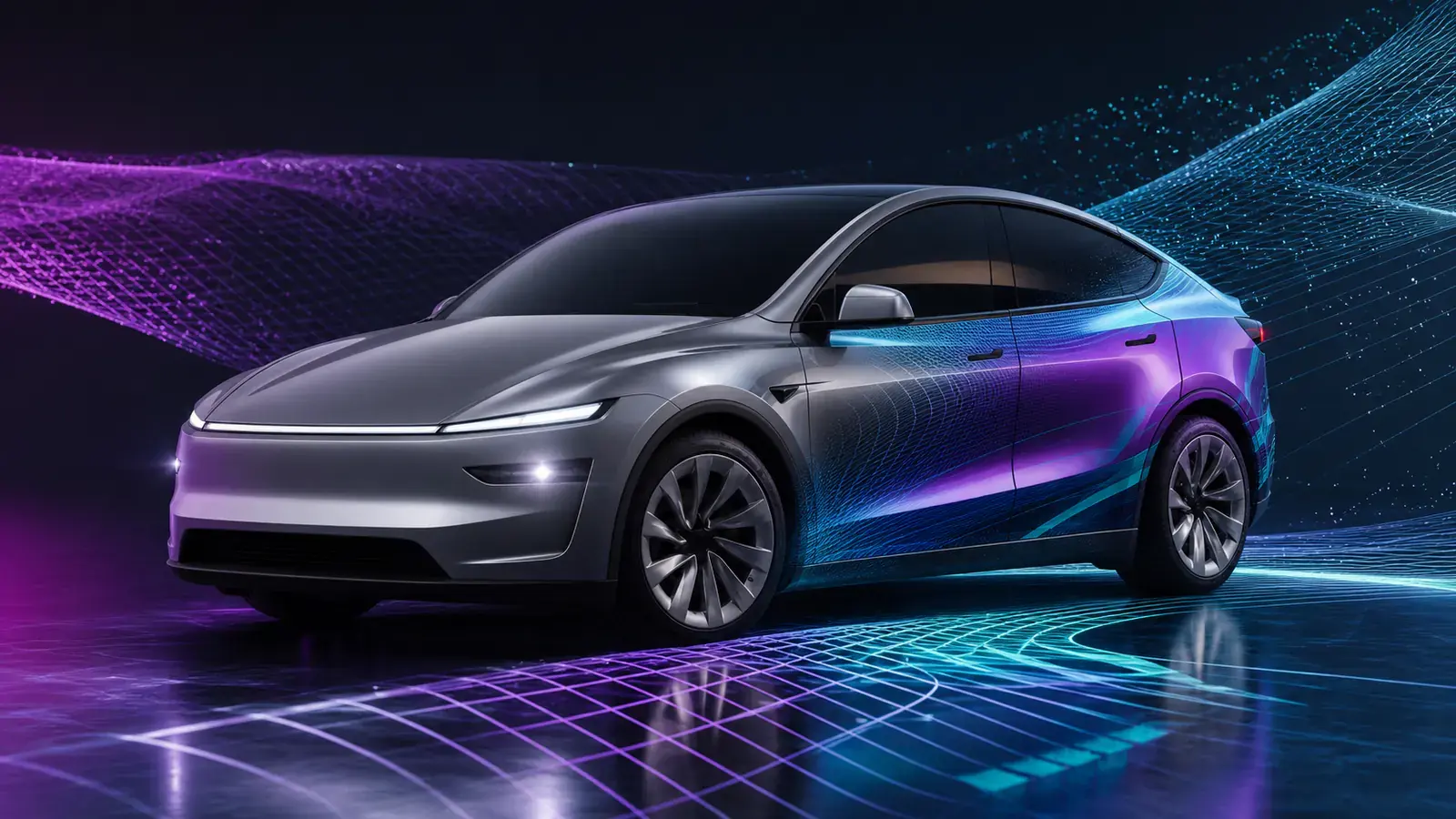
A practical guide to Tesla digital wraps: design your own online, download the PNG, and load it onto the car via Paint Shop. Covers Model 3, Model Y, Cybertruck and more. If you've seen a cool custom skin on a Tesla touchscreen and wondered how — it's simpler than you think. Paint Shop can load any PNG onto the vehicle's display as a virtual wrap: no film, no paint, no cost. Just a USB drive and a few minutes.
Basics: what is a Tesla digital wrap?
Every Tesla touchscreen shows its own 3D model. Paint Shop (inside Toybox) can re-skin that 3D model with a custom image — a flat PNG mapped onto the body via UV coordinates: every pixel in your image corresponds to a specific spot on the car. That means you can't just drop any picture on it. You need a PNG designed for your model's UV template. A Model 3 template won't work on Cybertruck, and a pre-2024 Model 3 template won't align on Highland.
Which models are supported?
•Model 3 Classic (pre-2024) — the earliest template; most community designs use it
•Model 3 Highland (2024+) — different front, needs its own template
•Model Y Standard — similar to Model 3 in some ways, different proportions
•Model Y Juniper (2025+) — new front, updated template
•Cybertruck — completely unique angular template
•Model S and Model X — less common but fully supported
Using the wrong template is the #1 reason wraps look wrong. Always confirm your model year.
Three ways to get a wrap
Option 1: Download from the Gallery
The fastest way. Our community Gallery has thousands of ready designs, sorted by popularity — the front page is what other owners actually downloaded and liked. Filter by Cybertruck, Model 3 or Model Y; every design is free.
Option 2: Design it yourself
Our online editor gives you the correct UV template and drag-and-drop canvas for your model. Add images, text, shapes and gradients. Key feature: live 3D preview, so you can see how the design maps before downloading. That matters — a design that looks great flat can be completely wrong in 3D, because UV mapping stretches around curves. 3D preview removes the design → USB → car → revise loop.
Option 3: Let AI do it
Describe what you want — 'matte black with gold racing stripes' or 'anime girl with cherry blossoms' — and AI generates a UV-ready wrap. Not perfect every time, but a great starting point you can refine in the editor.
Loading the wrap onto the car
•Take a USB drive, format exFAT or FAT32 (Mac: MS-DOS FAT; ext3/ext4 also supported; NTFS is not)
•Create a folder named Wraps in the root
•Put your PNGs in that folder (under 1 MB each, 1024×1024 or 512×512, max 10 files)
•Plug the USB into the Tesla (glovebox port is most reliable)
•On the touchscreen: Tesla logo → Toybox → Paint Shop → Wraps tab
•Your custom wrap appears alongside Tesla's built-in options
Common pitfalls: folder must be named Wraps, files under 1 MB, resolution 512×512 or 1024×1024, and the drive must not be NTFS — use exFAT or FAT32.
Design tips from experience
•Seam awareness — the UV template has visible panel boundaries (hood, doors, fenders). Designs that align with or deliberately cross seams look professional; ignoring them looks like wallpaper.
•Less is more — complex full-car designs look dramatic in the editor but often too busy on the car screen. Some top downloads are simple: one accent colour, a clean stripe, a subtle gradient.
•Dark colours pop — touchscreens have limited dynamic range; dark, saturated colours usually beat pastels or very light designs.
•Always use 3D preview — what looks centred flat can be off-centre on the car. 3D preview catches it instantly.
Next steps
New here? Browse the Gallery to see what's possible. Ready to make your own? Open the editor and pick your model — from blank canvas to a USB-ready PNG in about 10 minutes. Made something cool? Submit it to the Gallery; the best community designs are featured on our homepage.